

What this article shows you
Ask StefanBrain to carry approved creative and copy from a Chat into the Launch workspace. You can then review the campaign, ad sets, budgets, URLs and creative assignments without publishing anything.Practical use cases
Prepare a multi-ad-set test
Keep different URLs organized
Preserve approved copy
Separate preparation from publishing
Video walkthrough
Prepare a Launch draft from Chat, change Active to Paused, and stop before Launch Ads.
How the handoff works
Tell StefanBrain the complete launch structure you want. You normally do not need to select a tool manually. StefanBrain returns a review link. Opening it loads the campaign, ad-set, budget, URL, creative and copy fields into Launch. The draft can include completed static creative or a finished video render. Copy that exists only as prose in a Chat document does not automatically travel. Ask StefanBrain to use the final copy attached to the creative or include the approved copy in the draft.What you will do
- Finish the creative and copy in one Chat.
- Ask StefanBrain to prepare a specific multi-ad-set Launch draft.
- Open the returned review link.
- Change Launch status from Active to Paused.
- Verify every loaded field and stop before Launch Ads.
Before you start
Have these ready:- Launch access. If Launch is locked, select Request access, or ask a workspace owner or admin to turn on Launch in Settings → Team. Launch unlocks when the request is approved.
- At least one completed static creative or finished video render owned by your account.
- Final copy for each creative or ad set.
- A campaign name, budget structure and ad-set names.
- The destination URL and daily budget for each ad set.
- The intended connected ad account if you need to verify its defaults in Launch.
Follow along
Finish the source work in Chat
Request a reviewable Launch draft
launch. Include the
campaign, budget type, ad sets, URLs and creative assignments.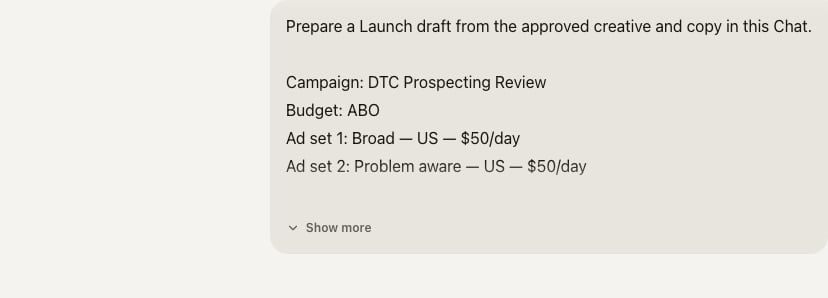
The request defines the campaign, both ad sets and the no-publish boundary before the draft is prepared.
Open the review link

The response confirms that the reviewable draft is ready and nothing was published. Launch status is set separately inside Launch.
Change Launch status to Paused
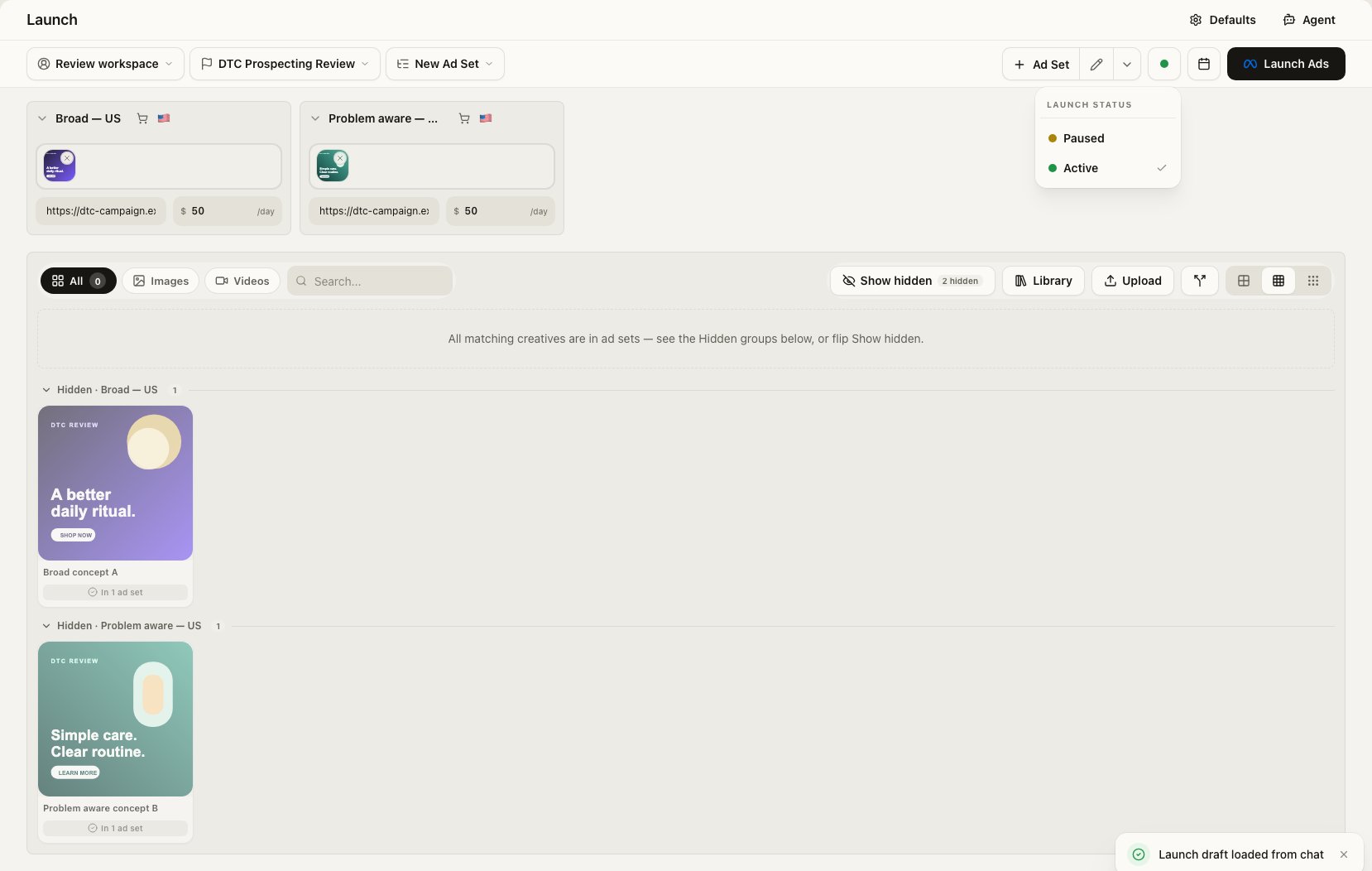
The hydrated draft opens with Active selected, so the reviewer opens Launch status and changes it to Paused.
Verify the loaded structure
- Campaign name, objective and budget type.
- Every ad-set name, budget and destination URL.
- Creative assignment and ad name.
- Primary text, headline, description and call to action.
- Account defaults for targeting, tracking, schedule and placements.
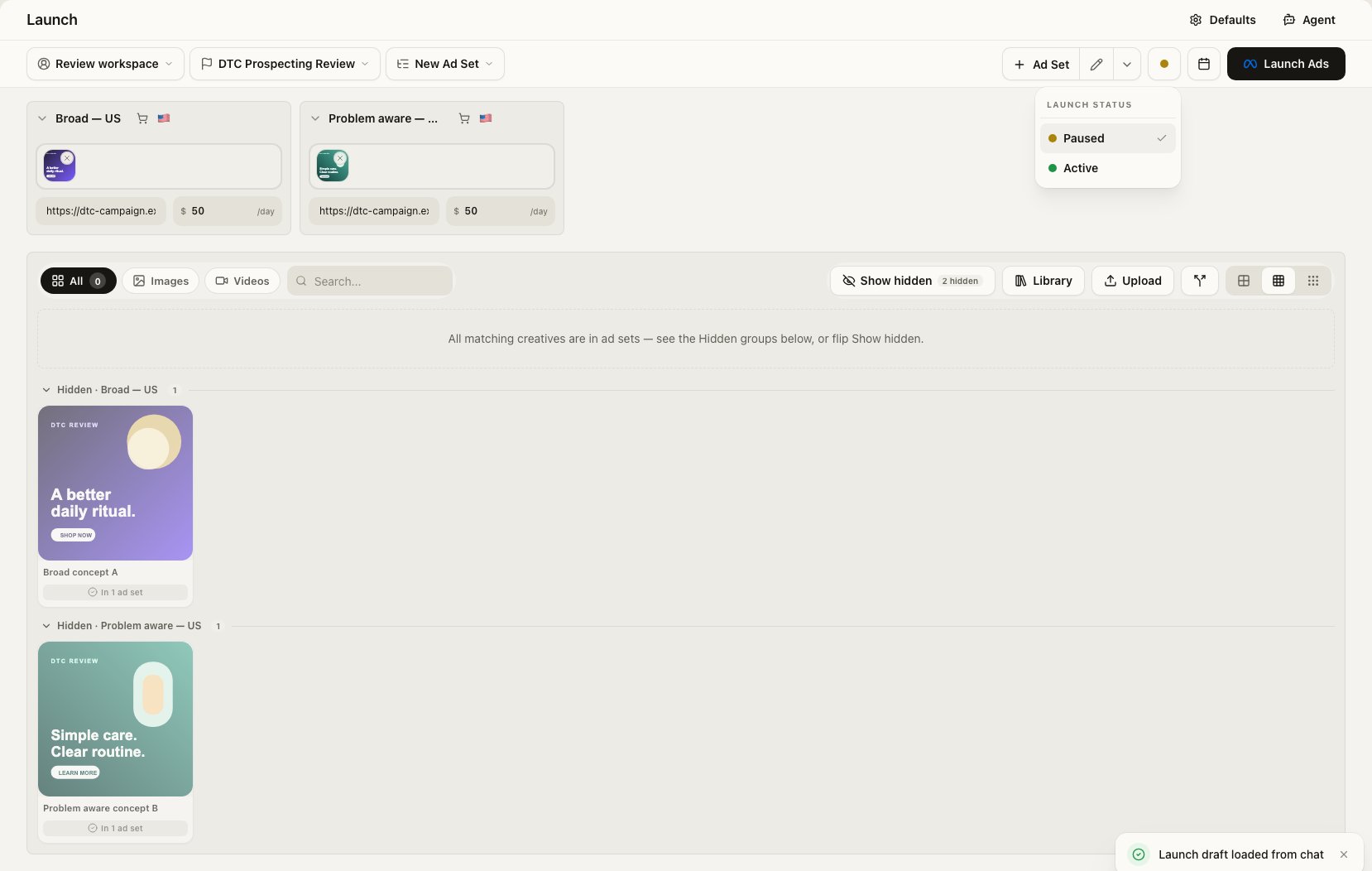
After the reviewer selects Paused, the workspace shows the two requested ad sets, example creative, the loaded-from-Chat notice and a visibly Paused launch status.
Stop at the unpublished draft
Verify the result
You should see Launch draft loaded from chat, Paused selected in Launch status, the expected campaign and ad sets, and the intended creative in each group. No launch job card should appear.Common mistakes and troubleshooting
StefanBrain cannot use one of the creatives
StefanBrain cannot use one of the creatives
The draft opens without one of the creatives
The draft opens without one of the creatives
The copy is missing or outdated
The copy is missing or outdated
Targeting shows placeholder values
Targeting shows placeholder values
The draft says it was already launched
The draft says it was already launched