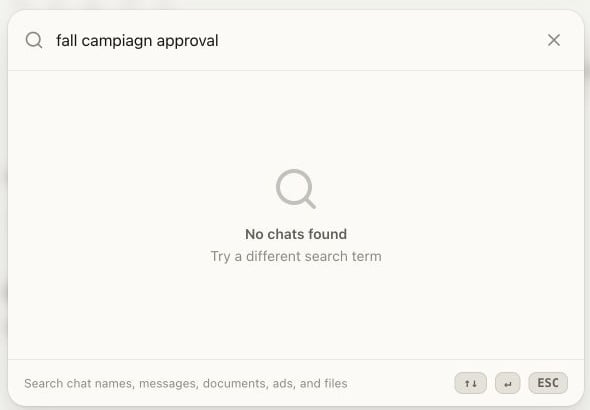
Use Search to return to work you already completed instead of recreating it. A result takes you back to the source Chat. From there, select the matching document or file when it does not open automatically.
Search checks the unarchived Chats you can access. It can match:
Chat names and summaries
Message text
Canvas document titles and text
Static ad copy
Supported uploaded-file names and extracted text
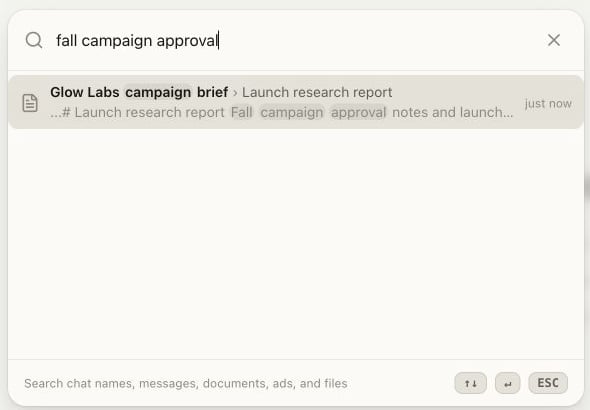
Each result represents a Chat. An icon indicates what matched, and the preview shows the matching text. Results inside a Project also show that Project’s visual cue.A result opens its source Chat near the matching work when that target is available. For a Canvas document or file, you may need to select the matching item inside the Chat after it opens.
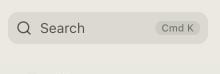
Select Search in the Chat sidebar. You can also press Cmd K on a Mac or Ctrl K on Windows.The search field reads Search chats….
Open Search from the Chat sidebar or use the Cmd K shortcut on a Mac.
2
Search for a distinctive phrase
Enter two or three words that are likely to appear only in the work you
need. For example, search approval bottleneck to find a document that
uses that phrase.Search matches partial words, so you can start with the part you remember.
A distinctive phrase narrows Search to one source Chat and matching Canvas document.
3
Choose the right result
Read the Chat name, matching item name, preview, and Project cue before
opening a result. A document or file result can appear as:Chat name › Item nameUse the arrow keys to move between results and press Enter, or select a result with your pointer.
4
Verify where Search took you
Confirm that the expected source Chat opened. For a Canvas document or
file, select the matching item in that Chat if it did not open
automatically. Then verify the title and contents before continuing.
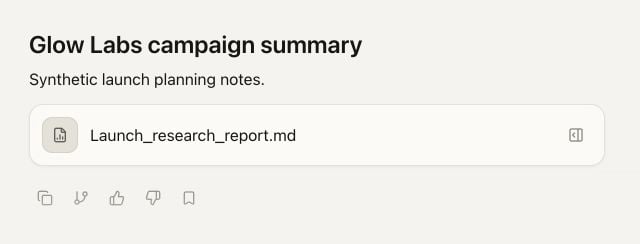
If the item does not open automatically, select the matching output inside the source Chat.
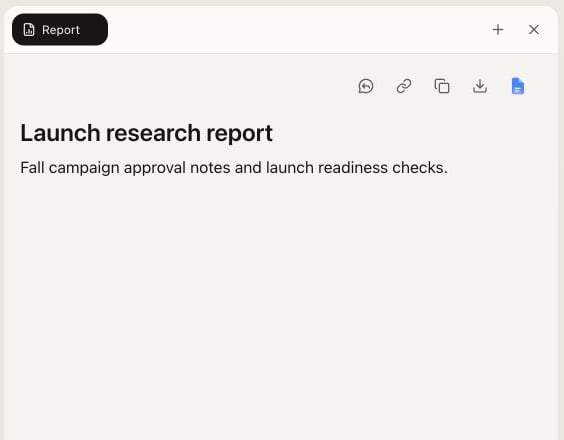
Verify the current Canvas title and content before continuing.
Search for language that belongs to the work, not broad labels that appear everywhere. A customer objection, campaign phrase, document title, or filename usually narrows the results faster than ads, launch, or notes.When several results look similar, use the Project cue and item name to confirm the client or workflow before continuing.