> ## Documentation Index
> Fetch the complete documentation index at: https://docs.stefanbrain.com/llms.txt
> Use this file to discover all available pages before exploring further.
> ## Agent Instructions
> Follow the content contract in AGENTS.md.
> Treat text as the canonical explanation; video and screenshots enhance it.
> Do not publish unverified product behavior or duplicate an existing canonical article.
# Turn a Chat into a reviewable Launch draft
> Carry approved creative and copy from Chat into an unpublished Launch draft, verify the loaded setup, and stop before publishing.
## What this article shows you
Ask StefanBrain to carry approved creative and copy from a Chat into the Launch workspace. You can then review the campaign, ad sets, budgets, URLs and creative assignments without publishing anything.
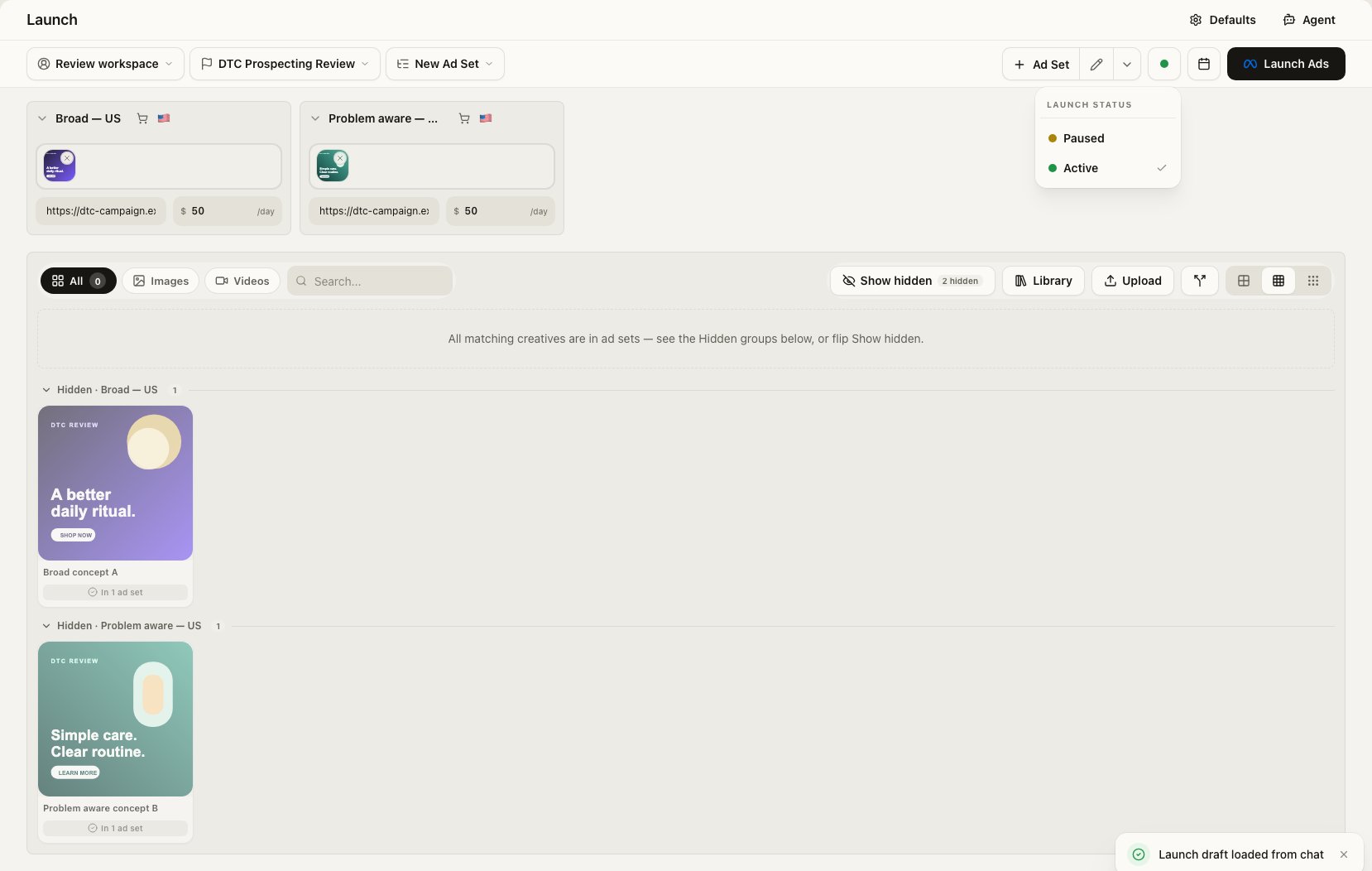
Preparing a draft creates nothing in the ad account. New drafts open with
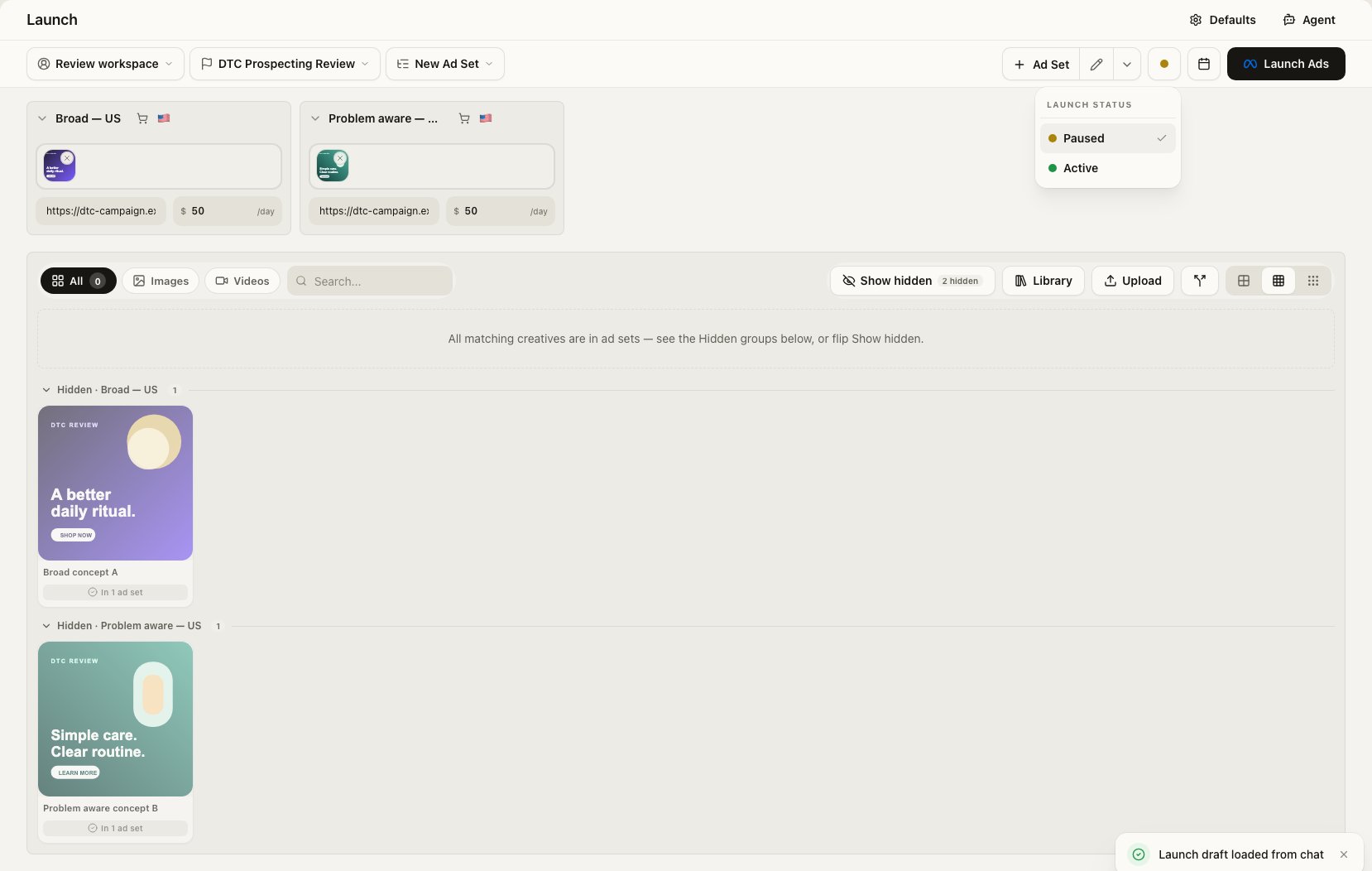
Launch status **Active**. Change it to **Paused**, then stop before **Launch
Ads**.
## Practical use cases
Stage two or more ad sets with their intended creative, copy, budget and
destination URL already mapped for review.
Carry a separate destination URL for each ad set instead of rebuilding the
structure by hand in the Launch workspace.
Move the final copy attached to each creative into the review surface so
the wording can be checked beside the correct asset.
Prepare and inspect the complete draft now, while keeping the final
external action as a separate human decision.
## Video walkthrough
## How the handoff works
Tell StefanBrain the complete launch structure you want. You normally do not need to select a tool manually.
StefanBrain returns a review link. Opening it loads the campaign, ad-set, budget, URL, creative and copy fields into Launch.
The draft can include completed static creative or a finished video render. Copy that exists only as prose in a Chat document does not automatically travel. Ask StefanBrain to use the final copy attached to the creative or include the approved copy in the draft.
Account defaults can supply targeting and tracking values after the draft
opens. Review those values in Launch before publishing.
## What you will do
1. Finish the creative and copy in one Chat.
2. Ask StefanBrain to prepare a specific multi-ad-set Launch draft.
3. Open the returned review link.
4. Change Launch status from **Active** to **Paused**.
5. Verify every loaded field and stop before **Launch Ads**.
## Before you start
Have these ready:
* Launch access. If Launch is locked, select **Request access**, or ask a
workspace owner or admin to turn on **Launch** in **Settings → Team**. Launch
unlocks when the request is approved.
* At least one completed static creative or finished video render owned by your account.
* Final copy for each creative or ad set.
* A campaign name, budget structure and ad-set names.
* The destination URL and daily budget for each ad set.
* The intended connected ad account if you need to verify its defaults in Launch.
## Follow along
Keep the approved creative and final copy in the same Chat. Name the exact
assets StefanBrain should use when the Chat contains several versions.
For static creative, confirm the final copy is attached to the creative.
For video, use a finished rendered version rather than an in-progress job.
Describe the intended structure, not only the word `launch`. Include the
campaign, budget type, ad sets, URLs and creative assignments.
```text theme={"system"}
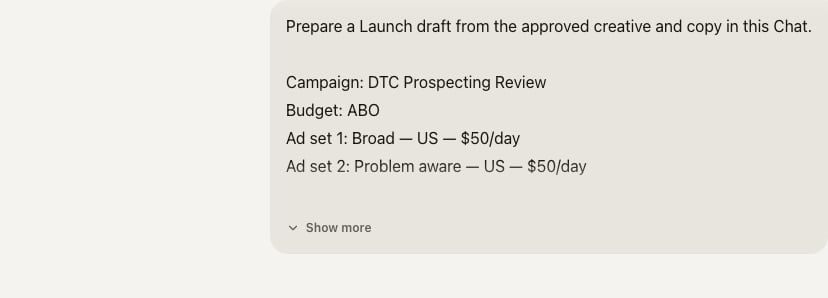
Prepare a Launch draft from the approved creative and copy in this Chat.
Campaign: [campaign name]
Budget: ABO
Ad set 1: [name]
Daily budget: [amount in the ad account's currency]
Destination: [https://destination.example/offer]
Ad set 2: [name]
Daily budget: [amount in the ad account's currency]
Destination: [https://destination.example/offer-2]
Use the final approved creative and copy for each ad set.
Do not publish or create anything externally. Stop at the reviewable Launch draft.
```
Add only the details that differ from the established Chat context. If the
two ad sets use different creative or copy, state that assignment directly.
Open the Launch review link in StefanBrain's response. Wait for **Launch
draft loaded from chat** before reviewing the workspace.
If the notice includes a warning, read it before changing the draft. A
missing creative may have been removed since the draft was prepared.
A new Chat-prepared draft opens with Launch status **Active**. Open the
status control in the top-right corner and select **Paused** before you
continue the review.
This does not publish anything. It changes the status the ads would use if
a person later completed the separate **Launch Ads** action.
Compare the workspace with your request:
* Campaign name, objective and budget type.
* Every ad-set name, budget and destination URL.
* Creative assignment and ad name.
* Primary text, headline, description and call to action.
* Account defaults for targeting, tracking, schedule and placements.
Correct any mismatch in Launch or return to Chat and prepare a replacement
draft when the source structure is wrong.
Do not select **Launch Ads** during this workflow. A successful result is a
complete, reviewable workspace with no launch job queued.
Continue to the publishing guide only after the account, campaign, ad sets,
creative, copy, URLs and paused status have been reviewed.
## Verify the result
You should see **Launch draft loaded from chat**, **Paused** selected in Launch
status, the expected campaign and ad sets, and the intended creative in each
group. No launch job card should appear.
The work has moved from Chat into a reviewable Launch draft. Nothing has
been created in the external ad account.
## Common mistakes and troubleshooting
Confirm that the asset is a completed creative owned by your current
account. Name the finished version directly, then prepare a replacement
draft.
Read the loading warning. A creative removed after preparation is skipped.
Return to Chat, choose an existing approved creative and prepare a new
draft.
Copy that only lives in a Chat document does not automatically travel.
Attach the approved copy to the creative or ask StefanBrain to include the
exact final copy in the replacement draft.
The account did not provide saved targeting defaults. Treat the values as
placeholders and configure the intended targeting before publishing.
Do not reuse it without checking the external account. Preparing a fresh
draft avoids accidentally recreating an earlier campaign.
## Next steps
* [Prepare, review, and launch ads](/knowledge-base/launch-publish/launch-ads)
* [Create and manage images in the Image workspace](/knowledge-base/images/use-the-image-workspace)
* [Give Chat the right context](/knowledge-base/chat/give-chat-the-right-context)
This documentation is built and hosted on [Mintlify](https://mintlify.com), a developer documentation platform.