> ## Documentation Index
> Fetch the complete documentation index at: https://docs.stefanbrain.com/llms.txt
> Use this file to discover all available pages before exploring further.
> ## Agent Instructions
> Follow the content contract in AGENTS.md.
> Treat text as the canonical explanation; video and screenshots enhance it.
> Do not publish unverified product behavior or duplicate an existing canonical article.
# Set up your first Product
> Create and review reusable Product context for future chats, research, and creative work.
## What this article shows you
A Product is reusable context about one offer: its name, source page, description, facts, reviews, images, and branding. Set it up once, review what StefanBrain captured, and reference it in later work with `@Product name`.
## Practical use cases
Reuse the same description, features, images, and customer language across
research, copy, images, and reviews.
Give each distinct offer its own Product so StefanBrain uses the right page,
details, and assets.
Link the Product to a Project so its Chats can use the Product alongside the
Project's instructions and files.
Mention the Product with `@` when you want its saved context available for a
new research, writing, or creative job.
## Video walkthrough
## How Product context works
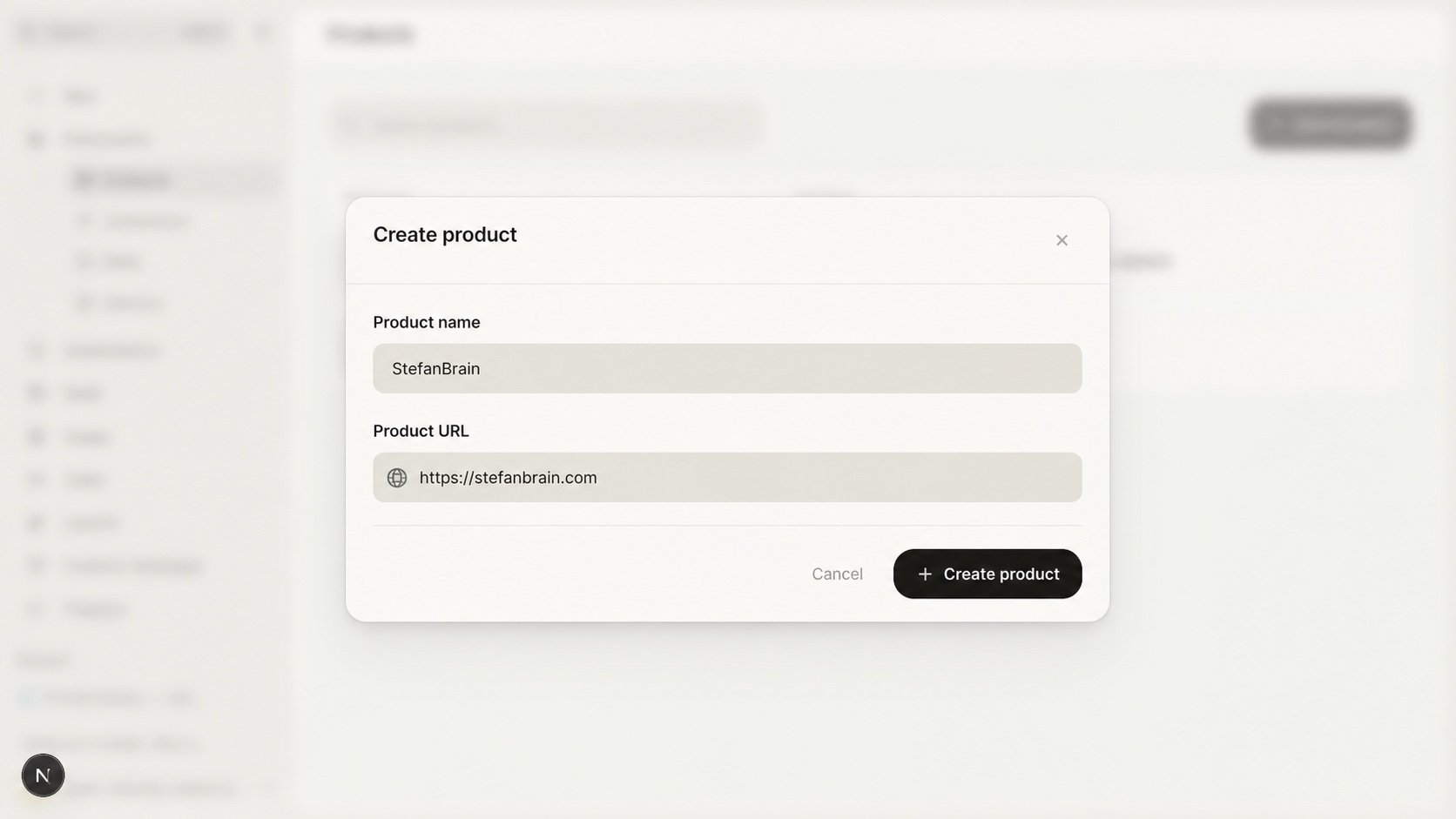
The create form asks for a **Product name** and an optional **Product URL**. A
name-only Product can be saved, but it stays unavailable in Chat `@` mentions
until you add a source URL and enrichment succeeds. For this walkthrough, use
the direct source page so the Product can become reusable Chat context.
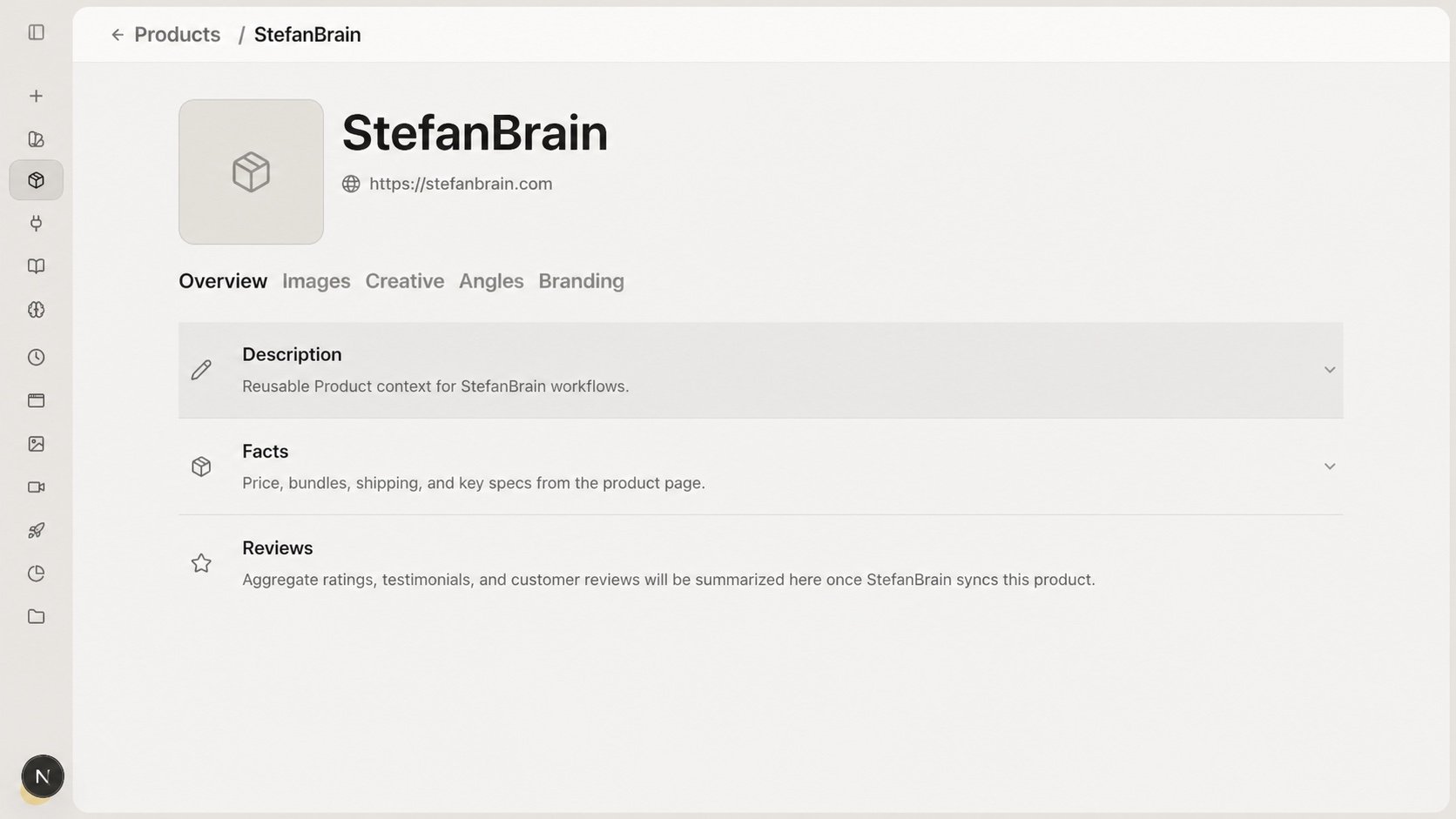
After creation, the Product workspace separates information by purpose:
| Section | What to review there |
| - | - |
| **Overview** | Description, synced Facts, and synced Reviews. |
| **Images** | Product images, briefs, screenshots, transcripts, and other source files. |
| **Creative** | Images, videos, and pages created with the Product attached. |
| **Angles** | Angle Finder results associated with the Product. |
| **Branding** | Saved colors, logos, typography, and brand assets. |
Enrichment gives you a starting point. Review the captured description, facts,
reviews, images, and brand elements so the Product reflects the current offer.
## What you will do
1. Create the Product from its name and source page.
2. Wait for source enrichment when a URL is present.
3. Review and correct the Product's reusable context.
4. Add useful files and brand assets where needed.
5. Confirm the Product is available from Chat.
## Before you start
Prepare:
* The exact Product display name you want to use in `@` mentions.
* The primary product or offer page, if one is publicly accessible.
* Current product details, pricing, reviews, and brand assets.
* A clear owner for correcting or removing stale information.
Use the direct product or offer page when possible. A store homepage can trigger a multi-product import choice, which is useful only when you intend to add several products.
## Follow along
Open **Products** from the StefanBrain sidebar, then select **New product**.
Enter the **Product name**. Use the name your team will recognize in Chat and Project pickers.
Product and Project names can match, but `@` resolution prioritizes the
Product. Use distinct names when possible so teammates can tell them apart.
If another Product already uses the name, choose that Product or use a
clearer name.
Enter the **Product URL** for the exact offer page you want StefanBrain to
inspect. The field is optional when saving, but a source URL is required to
start enrichment and make the Product available in Chat.
If StefanBrain finds several products from a store or collection URL, it shows **Found \[number] products — add multiple products?** Choose that path only when you want to review a catalog import.
Select **Create product**. StefanBrain opens the Product and starts enrichment when a URL is present.
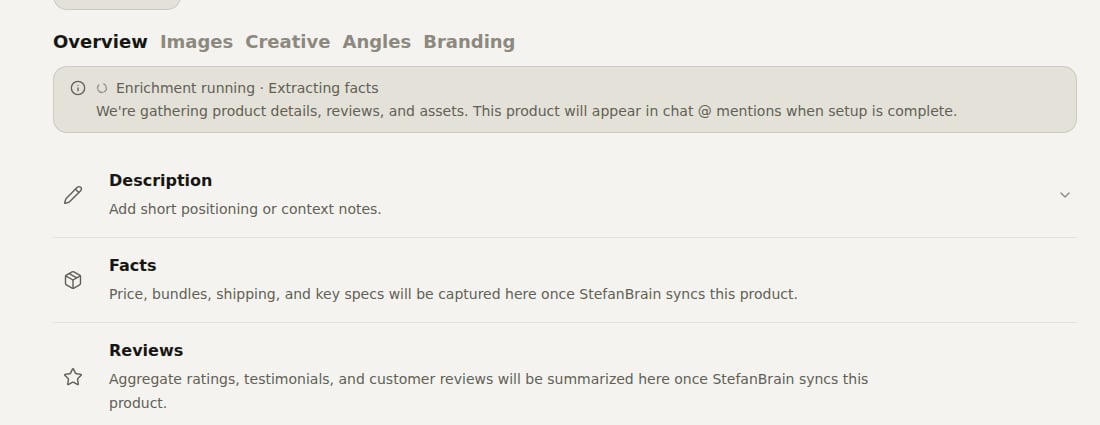
Enrichment can show states such as **Queued for enrichment** or **Enrichment running**. Do not assume the Product is complete while either state remains.
Open **Overview** and inspect **Description**, **Facts**, and **Reviews**.
Correct the Description when it is incomplete. When synced Facts are
available, expand them, compare them with the source page, and use **Edit
facts** to make corrections.
Open **Images** to review synced assets or add source files. Use this area
for product images, briefs, screenshots, transcripts, and other material
that should remain with the Product.
Open **Branding** and keep the colors, logos, typography, and assets your
team wants to reuse.
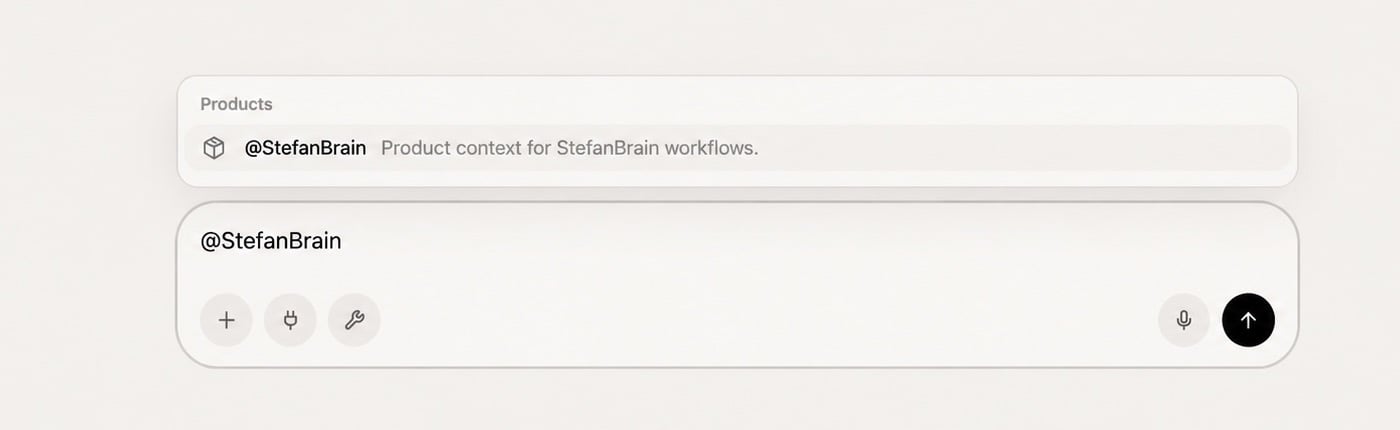
After enrichment succeeds, start a new Chat, type `@`, and confirm the
Product appears under **Products**. Select it, then ask StefanBrain to
summarize the saved context.
```text theme={"system"}
Using @StefanBrain, summarize the Product description,
main features, customer language, and any missing information
I should add before using it in campaign work.
Put the result in a short table.
```
## Make the Product useful
Before using the Product in campaign work, confirm:
* The name and source URL identify the intended offer.
* The Description explains the offer clearly.
* Facts match the current source page.
* Reviews are useful and current.
* Images and brand assets are ready to reuse.
* Stale, conflicting, or private files have been removed.
* A short Chat request can summarize the Product without missing key details.
Update the Product when the offer, pricing, source page, or brand assets change.
Keep campaign-specific instructions in the relevant Project rather than adding
them to the Product.
## Common mistakes and troubleshooting
* **Creating one Product for several different offers.** Separate them when the
source page, price, positioning, or assets change.
* **Using a store homepage for a single offer.** Use the direct product page unless you intend to review a catalog import.
* **Skipping the enrichment review.** Check Description, Facts, Reviews, Images,
and Branding before you start using the Product.
* **Adding campaign instructions to the Product.** Keep temporary audience, launch, and creative directions in a Project.
* **The Product remains queued.** Wait for the current job or use the visible retry action when StefanBrain marks it as stalled.
* **Enrichment fails.** Read the error on the Product page, confirm the source
URL is correct, and use **Retry enrichment**.
* **A file fails to upload.** Remove the failed file and upload it again.
* **The Product does not appear in Chat.** Confirm it is not archived and that
enrichment succeeded. If setup is still required, add a source URL and start
enrichment. If enrichment failed, use **Retry enrichment**, then search the
Products section again after it completes.
## Next steps
* [Create a Project and start its first Chat](/knowledge-base/products-projects/create-a-project)
* [Understand Products, Projects, and Chats](/knowledge-base/get-started/products-projects-and-chats)
* [Start your first useful Chat](/knowledge-base/get-started/start-your-first-chat)
* [Find campaign angles with Angle Finder](/knowledge-base/creative-strategist-research/use-angle-finder)
This documentation is built and hosted on [Mintlify](https://mintlify.com), a developer documentation platform.
 ```text theme={"system"}
Using @StefanBrain, summarize the Product description,
main features, customer language, and any missing information
I should add before using it in campaign work.
Put the result in a short table.
```
```text theme={"system"}
Using @StefanBrain, summarize the Product description,
main features, customer language, and any missing information
I should add before using it in campaign work.
Put the result in a short table.
```