> ## Documentation Index
> Fetch the complete documentation index at: https://docs.stefanbrain.com/llms.txt
> Use this file to discover all available pages before exploring further.
> ## Agent Instructions
> Follow the content contract in AGENTS.md.
> Treat text as the canonical explanation; video and screenshots enhance it.
> Do not publish unverified product behavior or duplicate an existing canonical article.
# Search past Chats, documents, ads, and files
> Find a past conversation, Canvas document, static ad, or uploaded file and return to the exact Chat where it was created.
## What this article shows you
Use **Search** to return to work you already completed instead of recreating it. A result takes you back to the source Chat. From there, select the matching document or file when it does not open automatically.
## Practical use cases
Search for a distinctive phrase from a previous conversation and jump to
the message where the decision was made.
Search a document title or a phrase from its contents, then open that
document in the original Chat.
Search a filename or text from a supported uploaded file and return to the
message where the file entered the workflow.
Search a distinctive headline or line of copy to find the Chat that
produced the static ad.
## Video walkthrough
## How Search works
Search checks the unarchived Chats you can access. It can match:
* Chat names and summaries
* Message text
* Canvas document titles and text
* Static ad copy
* Supported uploaded-file names and extracted text
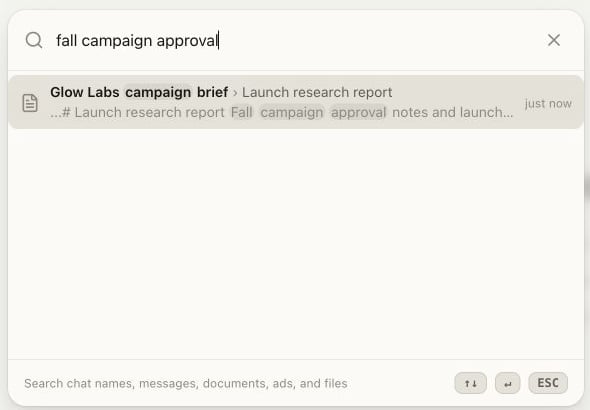
Each result represents a Chat. An icon indicates what matched, and the preview shows the matching text. Results inside a Project also show that Project's visual cue.
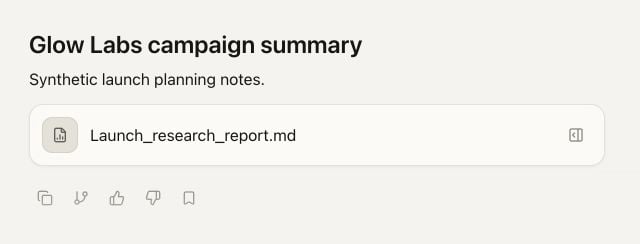
A result opens its source Chat near the matching work when that target is available. For a Canvas document or file, you may need to select the matching item inside the Chat after it opens.
## What you will do
1. Open Search.
2. Enter a distinctive phrase or filename.
3. Check which Chat and item matched.
4. Open the result and verify the destination.
## Follow along
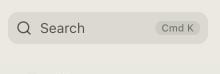
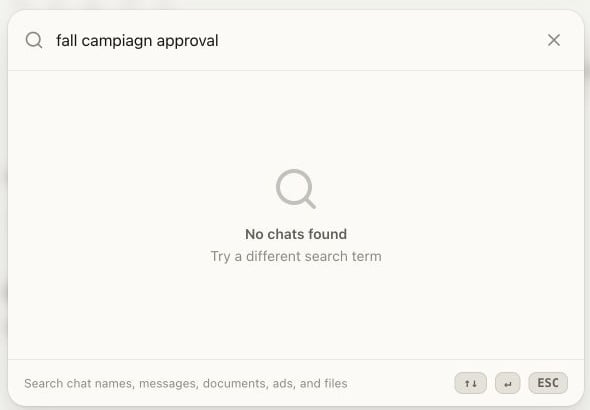
Select **Search** in the Chat sidebar. You can also press **Cmd K** on a Mac or **Ctrl K** on Windows.
The search field reads **Search chats...**.
Enter two or three words that are likely to appear only in the work you
need. For example, search `approval bottleneck` to find a document that
uses that phrase.
Search matches partial words, so you can start with the part you remember.
Read the Chat name, matching item name, preview, and Project cue before
opening a result. A document or file result can appear as:
`Chat name › Item name`
Use the arrow keys to move between results and press **Enter**, or select a result with your pointer.
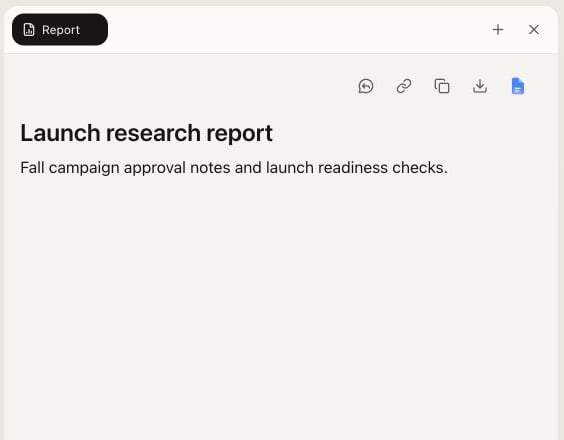
Confirm that the expected source Chat opened. For a Canvas document or
file, select the matching item in that Chat if it did not open
automatically. Then verify the title and contents before continuing.
## Make the result useful
Search for language that belongs to the work, not broad labels that appear everywhere. A customer objection, campaign phrase, document title, or filename usually narrows the results faster than `ads`, `launch`, or `notes`.
When several results look similar, use the Project cue and item name to confirm the client or workflow before continuing.
## Common mistakes and troubleshooting
* **Using a broad one-word query.** Add a second distinctive term, a filename, or a phrase from the deliverable.
* **Opening the first familiar Chat name.** Check the matching item and Project cue before selecting the row.
* **Expecting a file result to open a separate file viewer.** Search returns to the source message. Open the file from that Chat when needed.
* **The matched Canvas item did not open automatically.** Use the result's item name to select the matching output inside the source Chat.
* **Search is temporarily unavailable.** Select **Retry**. If the error continues, refresh StefanBrain and run the same query again.
* **The phrase is not in the current Canvas document.** Search again with the document title or language from its current contents.
## Next steps
* [Give Chat the right context](/knowledge-base/chat/give-chat-the-right-context)
* [Start your first useful Chat](/knowledge-base/get-started/start-your-first-chat)
* [Understand Products, Projects, and Chats](/knowledge-base/get-started/products-projects-and-chats)
This documentation is built and hosted on [Mintlify](https://mintlify.com), a developer documentation platform.
 ## Next steps
* [Give Chat the right context](/knowledge-base/chat/give-chat-the-right-context)
* [Start your first useful Chat](/knowledge-base/get-started/start-your-first-chat)
* [Understand Products, Projects, and Chats](/knowledge-base/get-started/products-projects-and-chats)
This documentation is built and hosted on [Mintlify](https://mintlify.com), a developer documentation platform.
## Next steps
* [Give Chat the right context](/knowledge-base/chat/give-chat-the-right-context)
* [Start your first useful Chat](/knowledge-base/get-started/start-your-first-chat)
* [Understand Products, Projects, and Chats](/knowledge-base/get-started/products-projects-and-chats)
This documentation is built and hosted on [Mintlify](https://mintlify.com), a developer documentation platform.